 Noah's Portfolio
Battle Creek UI Specification
Faction selection, loadout, deployment, and player-facing menu flow for a Halo-inspired Roblox experience. This document covers the design, behaviour, and visual language of the in-game menu system.
Contents
- Overview
- Goals & Design Intent
- Target Audience
- Screen Architecture
- User Journey & Flow
- Faction Splash & Lobby
- Uniform Selection
- Weapon Selection
- Visual Design Language
- Interaction Feedback
- Audio System
- Camera & Depth of Field
- Auntie Dot Animation
- Faction Gating & Branching
- Screen Transitions
- Colour System
- Mobile Deployment Polling
- Technical Implementation
- Future: Service Record
1. Overview
This interface is designed to move a player from the pre-round state into active play with as little friction as possible while still preserving faction identity, role fantasy, and tactical choice. The menu must feel like part of the game world rather than an external utility layer.
The system supports first-time splash onboarding, faction choice, role or uniform selection, weapon assignment, optional mobile deployment selection, and transition back into live gameplay. The visual language is cinematic, faction-forward, and intentionally diegetic - using a blurred in-world background, large condensed headings, dark panels, and strong hover/state changes.
2. Goals & Design Intent
2.1 Primary Purpose
Move a player from pre-round to active play with minimal friction while preserving faction identity, role fantasy, and tactical choice.
2.2 Specific Goals
- Present a strong first impression through a cinematic splash screen and clear faction prompt.
- Support a structured onboarding flow: faction → uniform/role → weapons → deployment → spawn.
- Allow returning players to resume quickly by restoring prior weapon selections and bypassing unnecessary steps where possible.
- Provide responsive audio, hover, and camera feedback so every state change feels deliberate.
- Keep important information visible at the moment of decision - preview models, descriptions, selected state, lobby population, and deployment availability.
3. Target Audience
3.1 Intended Users
Primary users are players entering a session who need to understand where they are, which side they can join, and how to configure their loadout before deployment. A secondary audience includes developers, UI artists, scripters, and collaborators who may use this document to maintain or extend the menu system.
3.2 Expected Environment
The interface targets a desktop-first format with large cinematic panels, hover states, and viewport previews. The system also handles mobile touch GUI behaviour, coexisting with Roblox mobile support even though the presentation prioritises PC readability and a widescreen composition.
3.3 User Needs
Players need clarity, speed, and confidence. They should be able to tell what can be selected, what has already been selected, and what remains required before spawning. The system also needs to support faction restrictions, group-gated uniforms, and deployment edge cases without breaking flow.
4. Screen Architecture
4.1 Core Interface Containers
| Container | Purpose | Primary Content |
|---|---|---|
| ui_start_menu | Entry screen | Greeting, faction selection, introductory copy |
| ui_players_frame | Lobby awareness | Player list, current player count, colour-coded nameplates |
| ui_customise_frame | Role list | Uniform or class options, accept/return controls |
| ui_character_frame | Role preview | Viewport model and item description |
| ui_weapon_selection | Loadout selection | Primary/secondary/tertiary lists with state tabs |
| ui_weapon_preview | Loadout preview | 3D weapon models, title, short description |
| ui_spawn_selection | Deployment choice | Spawn confirmation and mobile deployment options |
4.2 Supporting Systems
The menu is reinforced by a scriptable camera setup, depth-of-field blur, looping menu music, button and cursor sound effects, viewport-based item previews, and attribute-driven state storage.
4.3 State Model
The script tracks persistent menu state through player attributes: HasSeenSplash, Faction, Gender, Uniform, Primary, Secondary, and Tertiary. A local selectionCurrent table mirrors weapon choices so the interface can update previews and show acceptance readiness without waiting for a full respawn cycle.
5. User Journey & Interaction Flow
5.1 Primary User Flow
Player enters → Splash (if first visit) → Choose faction → Choose uniform/role → Select primary, secondary, tertiary → Deploy (if mobile deployments available) → Spawn
5.2 Return Paths
Every major step includes a return control. The player can move back from uniform selection to faction choice, from weapon selection back to uniform selection, and from deployment back to weapon selection. This keeps the system forgiving and reduces the cost of experimentation.
5.3 Failure & Exception Handling
Access-denied faction choices trigger an error sound rather than silently failing. The system rebuilds player-list entries, regenerates deployment options, and checks whether existing depth-of-field effects should be removed before reapplying menu state. These are pragmatic guards against duplicated UI state.
6. Faction Splash & Lobby Screen
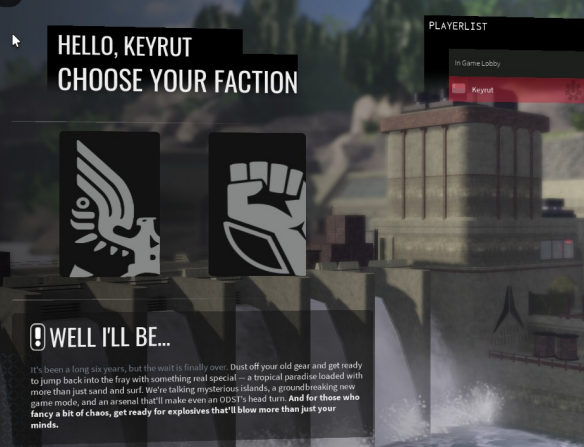
6.1 - Faction splash and lobby screen. Personalised greeting, faction options, and live player list.
This opening screen introduces the player by name, frames the faction decision as the first major action, and pairs that choice with a live player list. The descriptive copy block at the lower left helps sell the setting while the player list reinforces that the user is entering a populated lobby rather than a disconnected menu.
UNSC access is group-gated; URF and UEG paths branch differently. For military factions, the player chooses a uniform or role, or skips that step where allowed.
7. Uniform Selection
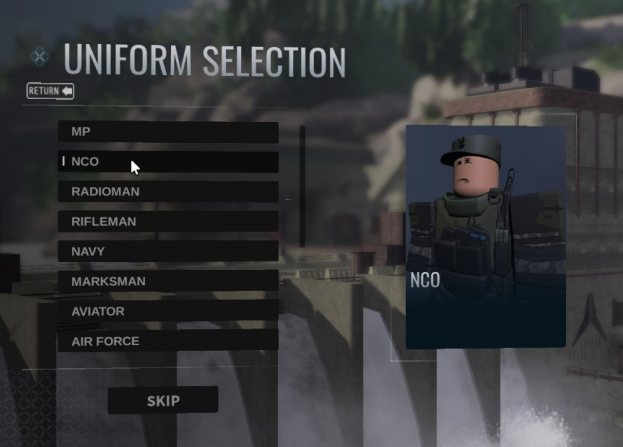
7.1 - Uniform selection. Vertical role stack with right-hand visual confirmation.
The uniform screen presents role or class choices in a vertical stack and uses the right-hand panel for visual confirmation. The list is dense but legible, and the large heading clearly anchors the current step in the flow. The inclusion of a Skip button is especially valuable for repeat users.
The menu uses ViewportFrame world models to preview uniforms. On hover, the current preview content is cleared and replaced with the hovered item model. On exit, the preview returns to the currently selected item when one exists. This pattern keeps the player oriented while preserving immediate exploration.
8. Weapon Selection
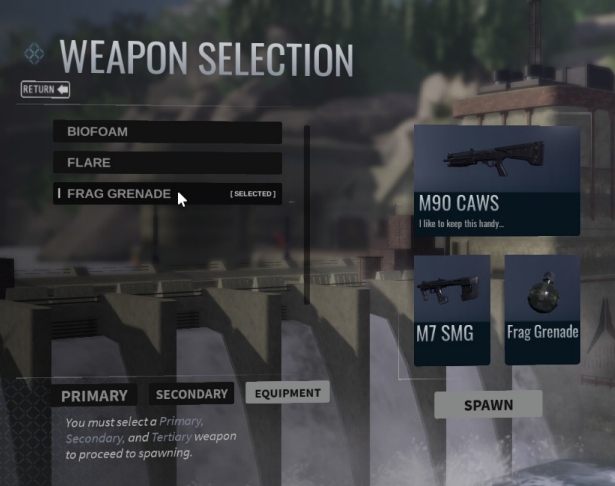
8.1 - Weapon selection. Tabbed categories with stacked preview cards.
This screen is the most functionally dense part of the sequence. It divides equipment into primary, secondary, and equipment tabs, displays list-based options on the left, and uses stacked preview cards on the right. The accept action is intentionally withheld until all required categories have been chosen.
8.2 Preview Model Workflow
The menu uses ViewportFrame world models to preview weapons. On hover, the current preview content is cleared and replaced with the hovered item model. On exit, the preview returns to the currently selected item when one exists. This pattern keeps the player oriented while preserving immediate exploration.
8.3 Deployment Behaviour
If a faction has mobile deployments available, the deploy menu is inserted as an additional decision point. If not, the code falls through directly into gear assignment, HUD re-enable, camera reset, and teleport to the proper spawn collection tag. This branching keeps advanced spawn logic from slowing down the default case.
9. Visual Design Language
9.1 Stylistic Direction
The interface uses a restrained military sci-fi visual system: tall condensed headlines, black or near-black panels, light text, soft transparency, and a heavily blurred world backdrop. The tone is serious and factional rather than playful. The result feels closer to a campaign lobby or tactical terminal than a default Roblox menu.
9.2 Composition Principles
The layout uses asymmetry productively. Primary decision controls are usually grouped on the left, while preview content sits on the right. This keeps the scan path stable: choose on the left, verify on the right, then confirm at the lower edge.
9.3 Atmosphere
The menu switches the player to a scriptable camera with a narrower field of view for a staged presentation. Looping music and depth of field separate menu mode from live gameplay. The combination creates a clear psychological boundary: you are preparing, not yet playing.
10. Interaction Feedback
| Feedback Type | Behaviour |
|---|---|
| Hover | Icons brighten, arrows appear, and panel labels slide or reveal. |
| Audio | Horizontal and vertical cursor sounds differentiate tab movement from item focus. |
| Selection | Chosen weapons display a selected marker and unlock accept state once all categories are filled. |
| Camera | Scriptable camera with narrower FOV for staged presentation. |
| Atmosphere | Looping music and depth of field separate menu mode from live gameplay. |
11. Audio System
11.1 Sound Architecture
The menu maintains a dedicated sounds container with individually named audio instances. This separation keeps audio concerns out of the UI logic and allows sounds to be swapped or rebalanced without touching interaction code.
11.2 Sound Inventory
| Sound | Trigger | Purpose |
|---|---|---|
| a_button | Confirm / select | Primary action acknowledgement |
| b_button | Back / return | Navigation reversal |
| y_button | Alternate action | Secondary confirmation |
| cursor_horizontal | Tab switch | Differentiates lateral navigation from vertical list scrolling |
| cursor_vertical | List item hover | Provides feedback on vertical list traversal |
| into_squad_details | Entering detail view | Signals drill-down into a sub-screen |
| out_of_squad | Exiting detail view | Signals return from a sub-screen |
| lobby_readout | Lobby state change | Ambient lobby feedback |
| error | Denied action | Access-denied faction choice or invalid selection |
| advance | Screen progression | Plays on every forward step in the flow |
| music_loop | Menu active | Looping ambient music; fades in on menu open, fades out on spawn |
| music_out | Menu closing | Transition sting when exiting to gameplay |
11.3 Music Behaviour
The menu loop fades in to 50% volume over 0.5 seconds when the menu opens. On spawn, the loop fades out to 0 over the same duration before stopping. This crossfade prevents hard audio cuts and smooths the transition between menu and gameplay states.
12. Camera & Depth of Field
12.1 Scriptable Camera
On menu open, the camera type is set to Enum.CameraType.Scriptable and locked to a predefined cameraGuiObj CFrame stored in the script hierarchy. The field of view is narrowed to 35° (down from the default 70°), creating a cinematic, compressed perspective that frames the in-world backdrop behind the UI panels.
12.2 Depth of Field
A DepthOfField post-processing effect is cloned into Lighting when the menu opens. On startup, the system checks for and destroys any pre-existing DepthOfField instance to prevent stacking. On spawn, the effect is destroyed (not disabled), ensuring a clean return to gameplay visuals.
12.3 Mobile Handling
The system detects the Roblox TouchGui and disables it during menu mode to prevent touch controls from interfering with the custom UI. On spawn, it is re-enabled. The Roblox topbar transparency is set to 1 (fully transparent) during menu mode and restored on exit.
12.4 Camera Reset
On spawn, the camera utility module's Reset() function is called, the camera type returns to Custom, FOV restores to 70°, and all CoreGui elements are re-enabled. This ensures no menu state leaks into gameplay.
13. Auntie Dot Animation
13.1 Spritesheet Playback
An animated AI companion element ("Auntie Dot", a nod to Halo: Reach) appears on the customise, weapon selection, and deploy screens. The animation is driven by a spritesheet with a 4×3 grid of 68×64px frames, cycling at 100ms per frame in a continuous loop.
13.2 Implementation
The animation runs via a coroutine that iterates through 12 frame offsets, updating ImageRectOffset on three separate ImageLabel instances simultaneously. Each screen's Auntie Dot instance is synchronised to the same frame, maintaining visual consistency as the player moves between screens.
14. Faction Gating & Branching
14.1 Three Factions
| Faction | Access | Flow |
|---|---|---|
| UNSC | Requires membership in Roblox group 152444 or 770504; rank 2 is excluded | Full flow: uniform → weapons → deploy → spawn at UNSC spawn tags |
| URF (Raider) | Open to all players | Full flow: uniform → weapons → deploy → spawn at Innie spawn tags |
| UEG (Civilian) | Open to all players | Bypasses uniform and weapon selection entirely; spawns directly at civilian spawn tags with all CoreGui enabled |
14.2 Group-Gated Uniforms
Within the UNSC faction, individual uniforms can be gated behind additional Roblox group membership. Each uniform model may contain a Group IntValue child; if present, the player must be a member of that group for the uniform to appear in the list. Ungated uniforms (no Group child) are always shown.
14.3 Gender Branching
Uniform sets are split by gender under each faction folder ( Uniforms/UNSC/Male, Uniforms/UNSC/Female, etc.). The gender attribute is set on faction selection and determines which uniform set is loaded. This allows distinct character models per gender without duplicating selection logic.
15. Screen Transitions
15.1 Tween-Based Sliding
All screen transitions use Roblox's TweenPosition with a 0.3-second duration. Screens enter from off-screen positions and slide to their target coordinates. On exit, they slide in the opposite direction before being hidden. This creates a consistent left-to-right flow for forward navigation and right-to-left for returns.
15.2 Transition Coordinates
| Transition | Left Panel Target | Right Panel Target |
|---|---|---|
| Splash → visible | UDim2(0, 0, 0, 0) | UDim2(0.649, 0, 0, 0) |
| Splash → hidden | UDim2(-0.2, 0, 0, 0) | UDim2(0.7, 0, 0, 0) |
| Customise → visible | UDim2(0, 0, 0, 0) | UDim2(0.45, 0, 0.1, 0) |
| Weapons → visible | UDim2(0, 0, 0, 0) | UDim2(0.45, 0, 0.1, 0) |
| Deploy → visible | UDim2(0, 0, 0, 0) | - |
15.3 Interactability Guards
When a screen slides out, its Interactable property is set to false to prevent ghost clicks on hidden frames. The incoming screen's interactability is restored on entry. This is a temporary bandaid but effectively prevents input bleed between overlapping transition states.
16. Colour System
16.1 UI Colour Palette
| Token | Value | Usage |
|---|---|---|
| hoverColour | rgb(220, 221, 218) | Faction button icon on hover |
| nohoverColour | rgb(134, 135, 135) | Faction button icon default state |
| selectColour | rgb(134, 135, 135) | Active weapon tab background |
| unSelectColour | rgb(18, 18, 18) | Inactive weapon tab background |
16.2 Weapon Category Vectors
Each weapon category is assigned a brightness tier for visual hierarchy in the preview panel:
- Primary: rgb(222, 222, 222) - brightest, highest priority
- Secondary: rgb(177, 177, 177) - mid-tone
- Tertiary: rgb(101, 101, 101) - dimmest, lowest priority
This greyscale hierarchy lets the player intuitively read which weapon slot carries the most weight without relying on labels alone.
16.3 Player Nameplate Colours
The lobby player list computes nameplate colours using Roblox's standard name-colour algorithm - a hash of the username string mapped to an 8-colour palette (red, blue, green, violet, orange, yellow, light reddish violet, brick yellow). This keeps the list feeling familiar to Roblox users while fitting the custom dark-panel aesthetic.
17. Mobile Deployment Polling
17.1 Deployment Discovery
A coroutine polls workspace.MobileDeployments[Faction] every 1 second, checking each child for a deployable BoolValue. When a deployable vehicle or location is found, a deploy button is dynamically cloned into the faction-specific deploy list. The button stores an ObjectValue reference to the deployment's workspace instance.
17.2 Faction-Specific Lists
The deploy menu contains separate list containers for UNSC and URF. On open, only the current faction's list is made visible; the other is hidden. This prevents cross-faction deployment options from appearing.
17.3 Spawn Execution
On deployment selection, the system verifies the deployment is still marked deployable, then teleports the player to the deployment's Spawn CFrame offset by 5 studs vertically. Gear is granted via server-side RemoteEvents ( giveGear for each weapon slot, giveUniform for the outfit), the camera resets, DOF is destroyed, music fades, and the HUD is re-enabled.
18. Technical Implementation
18.1 Dynamic Content Generation
Weapons and outfits are not hardcoded into the screen as static labels. Instead, the script clones button templates for each item found under ReplicatedStorage folders. This is the correct architectural choice for a content set that may expand over time.
18.2 State Persistence
The script tracks persistent menu state through player attributes ( HasSeenSplash, Faction, Gender, Uniform, Primary, Secondary, Tertiary). A local selectionCurrent table mirrors weapon choices so the interface can update previews and show acceptance readiness without waiting for a full respawn cycle.
18.3 Player List Behaviour
The lobby panel periodically refreshes player count and reconstructs missing nameplate entries. Nameplate colour is computed from the standard Roblox name-colour logic, which helps the list feel familiar while still fitting the custom shell.
18.4 Deployment Branching
If a faction has mobile deployments available, the deploy menu is inserted as an additional decision point. If not, the code falls through directly into gear assignment, HUD re-enable, camera reset, and teleport to the proper spawn collection tag. This branching keeps advanced spawn logic from slowing down the default case.
18.5 Returning Player Fast Path
When HasSeenSplash is already set, the system skips the splash screen entirely and reconstructs the weapon selection state from stored attributes. Each weapon list is populated, and any previously selected items are marked with a visible selected indicator. The preview panels are pre-loaded with the stored weapon's ViewModel and Description. If all three categories are already filled, the Accept button is immediately shown - allowing a returning player to deploy in a single click.
18.6 Button Pulse Effect
All elements tagged Button via CollectionService receive a continuous transparency pulse on their color_middle child. The pulse cycles from 0 to 1 and back at a rate of ~0.02 per frame, creating a subtle breathing glow. New instances added at runtime receive the same effect via GetInstanceAddedSignal, wrapped in a pcall to silently handle destruction during animation.
18.7 Server Communication
All persistent state changes are sent to the server via BigWorld.giveValue (a RemoteEvent). Gear and uniform grants use separate RemoteEvents ( giveGear, giveUniform). The client never directly modifies player attributes - it fires the server event and reads back the attribute on the next frame. This keeps the authority model clean even though the UI is entirely client-driven.
19. Future: Service Record
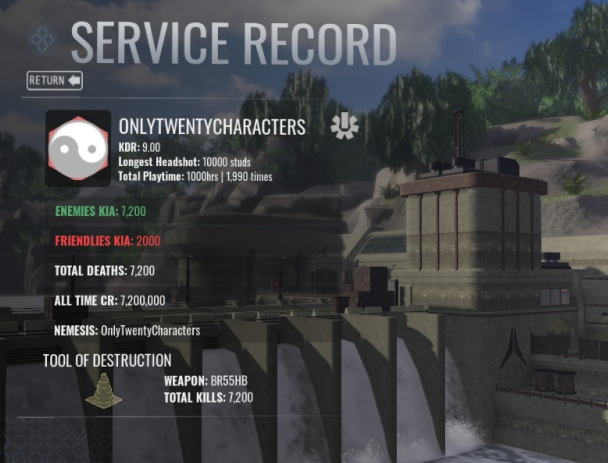
19.1 - Service record screen. Same visual grammar as the onboarding flow - large condensed title, dark translucent panel, in-world backdrop.
A service record screen is planned as the next major addition to the menu system. It will sit adjacent to the main onboarding flow rather than directly inside it, using the same visual grammar: large condensed title, dark translucent panel, and in-world backdrop.
The service record will display persistent player statistics, match history, rank progression, and commendation tracking. It is designed to be a strong example of visual consistency across the broader UI family - reinforcing the fiction that the player is interacting with a military operating system, not a game menu.
The service record is currently in design. When implemented, it will complete the meta-UI layer and give players a reason to engage with the menu system beyond the deployment flow.